

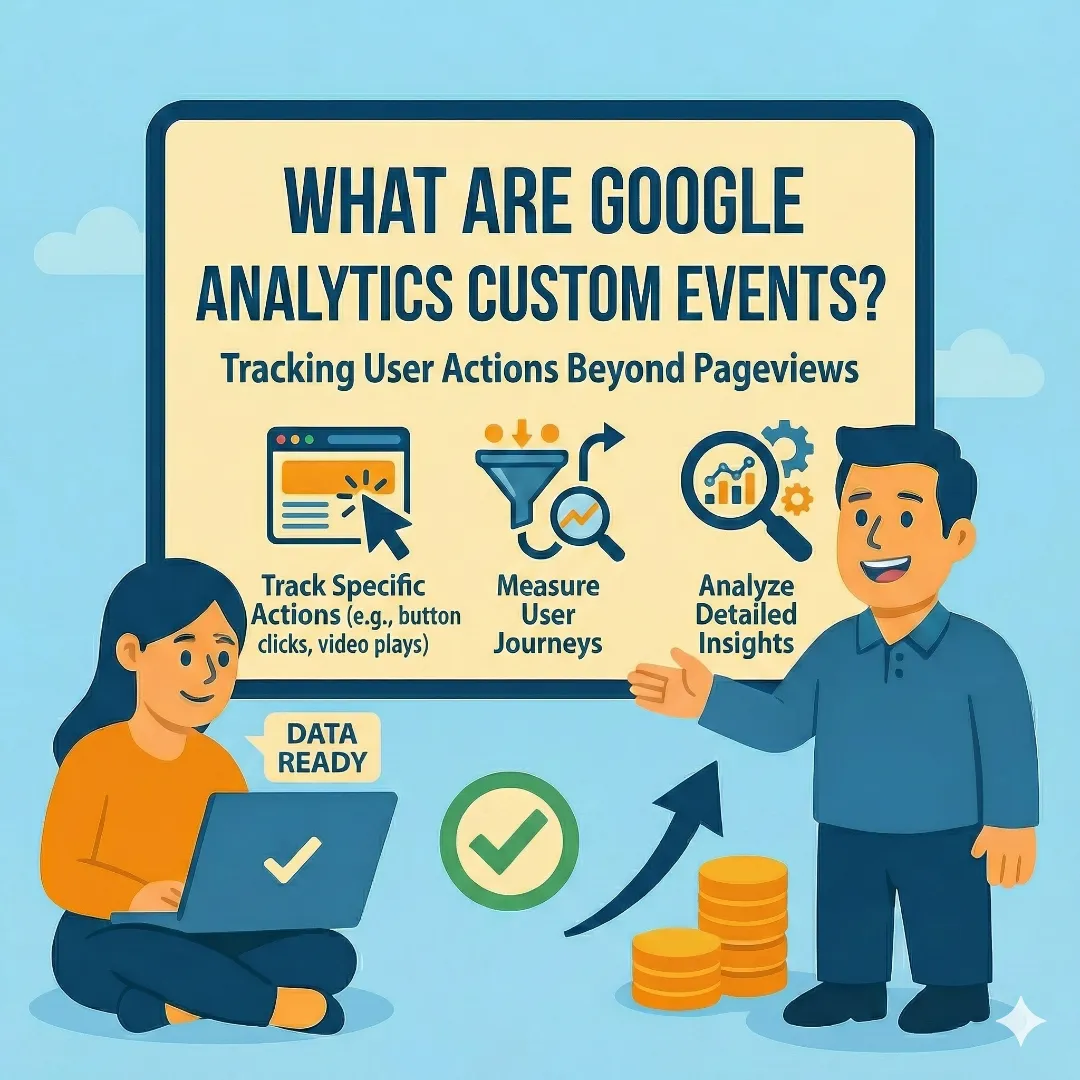
Most businesses check their Google Analytics and see the same thing: pageviews, sessions, maybe a bounce rate. It's like knowing how many people walked into your store but having no idea whether they picked up a product, asked a question, or walked right back out.
Custom events change that. They let you track the specific actions visitors take on your website — clicking a "Get a Quote" button, watching a video, downloading a brochure, or abandoning a form halfway through. These are the moments that reveal whether someone is casually browsing or genuinely interested in becoming a customer.
What Are Custom Events in GA4?
In Google Analytics 4, everything is an event. Every time a visitor does something on your website — loads a page, clicks a link, scrolls down, watches a video — GA4 records it as an event. Think of events as a logbook of actions people take.
This is a fundamental shift from the old Universal Analytics, which was built around pageviews and sessions. GA4's event-based model is much more flexible because it lets you define and track any action that matters to your business, not just page loads.
GA4 organizes events into three tiers. Understanding the difference helps you know what you get for free and where custom events add value:
Automatic Events
Collected by default with no setup. Includes page_view, session_start, first_visit, and user_engagement. These are the basics — helpful, but limited.
Enhanced Measurement
Toggle these on in GA4 settings. Tracks scrolls (90% depth), outbound clicks, site search, video engagement, and file downloads automatically.
Custom Events
Events you define yourself to track actions specific to your business — form submissions, CTA clicks, quote requests, or any interaction that signals customer intent.
Automatic and Enhanced Measurement events give you a foundation, but they can't tell you what a specific button click meant, whether a visitor completed your contact form, or which service page actually drives leads. That's where custom events come in.
Why Default Analytics Aren't Enough
Default analytics can tell you that people visit your website. Custom events tell you what they do once they're there — and more importantly, what they almost did before leaving. That gap between "visited" and "converted" is where you're losing money, and custom events are the only way to see it clearly.
Default Metrics vs. Custom Event Insights
| What You're Measuring | Default Analytics Tells You | Custom Events Tell You |
|---|---|---|
| Contact page | 72 people viewed it | 18 started the form, 6 submitted, 12 abandoned after the phone field |
| Homepage CTA | Button exists on the page | 134 clicks on 'Get a Free Quote' vs. 22 clicks on 'Learn More' |
| Service pages | Average 2:15 time on page | 65% scroll past pricing, 40% click the comparison table, 12% reach the FAQ |
| Blog content | 1,200 pageviews this month | 320 readers hit the 75% scroll mark, 45 clicked a CTA inside the article |
| Phone number | It's listed in the header | 87 click-to-call taps this month, 60% from mobile service pages |
See the difference? Default metrics give you a summary. Custom events give you a story — one you can actually act on.
8 Custom Events Every Business Should Track
You don't need to track everything. Start with the events that directly connect to revenue and customer intent. Here are the eight that matter most for service-based businesses and local companies:
1. Form Submissions (and Form Abandonment)
Why it matters: Your contact form is probably your most important conversion point. Tracking submissions tells you how many leads you're getting. Tracking abandonment tells you how many you're losing — and where.
What to track: form_start (user begins typing), field interactions, form_submit (successful submission), and form_abandon (user leaves without submitting).
Business insight: If 50 people start your form each month but only 10 submit, you know there's friction. Add field-level tracking to find exactly where they drop off — often it's a phone number field or a "budget" dropdown that feels too intrusive.
2. CTA Button Clicks
Why it matters: You probably have multiple calls-to-action across your site — "Get a Quote," "Schedule a Call," "Learn More." Without click tracking, you have no idea which ones actually work.
What to track: cta_click with parameters for button_text, button_location (header, hero, footer, sidebar), and page_url.
Business insight: You might discover that the CTA in your blog posts generates more clicks than the one in your hero section. That's valuable information for redesign decisions and content strategy.
3. Phone Number / Click-to-Call
Why it matters: For many local businesses, phone calls are the primary lead source. If your phone number is on the website but you're not tracking taps, you're flying blind on a critical metric.
What to track: click_to_call with parameters for phone_number, click_location (header, footer, contact page, service page).
Business insight: Learn which pages drive the most calls. If your pricing page generates more phone leads than your contact page, that tells you people want to talk before committing — consider adding a "Call to discuss pricing" CTA right there.
4. Scroll Depth on Key Pages
Why it matters: GA4's Enhanced Measurement only tracks 90% scroll depth. That's a single data point that misses the nuance. Custom scroll tracking at 25%, 50%, 75%, and 90% shows you exactly how far people read your most important content.
What to track: scroll_depth with parameters for depth_threshold (25, 50, 75, 90) and page_type (service page, blog post, landing page).
Business insight: If 80% of visitors scroll past your services but only 20% reach your testimonials section, you might want to move those testimonials higher on the page — or add a CTA before the drop-off point.
5. Video Plays and Completion
Why it matters: Video is expensive to produce. You need to know if people are actually watching it — and if it's moving them toward a conversion.
What to track: video_play, video_progress (25%, 50%, 75%), and video_complete with parameters for video_title and page_url.
Business insight: If your project showcase video gets played 200 times but only 15% watch past the first 30 seconds, the intro isn't hooking viewers. If 70% complete it and then click your contact CTA, that video is your strongest conversion tool.
6. File Downloads (PDFs, Brochures, Guides)
Why it matters: Someone who downloads your pricing guide or service brochure is further along the buying journey than someone who just browses. These are warm leads.
What to track: file_download with parameters for file_name, file_type (PDF, DOC), and page_url where the download link was clicked.
Business insight: Track which downloadable resources drive the most follow-up contact form submissions. If your "Project Planning Guide" consistently precedes quote requests, create more content like it.
7. Outbound Link Clicks
Why it matters: When visitors click links that take them away from your site — to your social media, third-party booking systems, Google Maps, or review platforms — that's valuable data about where they go next.
What to track: outbound_click with parameters for link_url, link_text, and page_url.
Business insight: If you notice lots of outbound clicks to Google Maps from your service area pages, people are verifying you're in their area. That's a signal to make your service area information more prominent and reassuring.
8. Time-on-Page Thresholds (Engaged Readers)
Why it matters: GA4's "average engagement time" is a broad average. Custom time thresholds let you define what "engaged" means for different page types — 30 seconds on a service page is engaged, while a blog post might need 3+ minutes.
What to track: engaged_reader with parameters for time_threshold (30s, 60s, 180s) and page_type.
Business insight: Identify which pages keep people's attention the longest. If your "About Us" page has high engagement but low follow-through to your contact page, add a CTA there. Those visitors are interested in your story — make it easy for them to reach out.
Industry-Specific Event Examples
The right events to track depend on your industry and how customers buy from you. Here are real-world examples for businesses we frequently work with:
Construction Companies
- Quote request form tracking: Track each field interaction to find where potential clients abandon the form — do they drop off at "project budget" or "project timeline"?
- Project gallery engagement: Track which project categories (kitchens, additions, commercial) get the most clicks and how many photos people view per project
- Service page comparison: Monitor which service pages visitors view in a single session — someone viewing both "remodeling" and "additions" may need a different pitch than someone focused on one service
Related: 10 Website Features Every Construction Company Needs
Medical Transportation (NEMT)
- "Schedule a Ride" funnel: Track each step — page view → form start → ride details entered → submission — to find where patients or caregivers drop off
- Service area page engagement: Monitor which city or county pages drive the most calls and form submissions to help prioritize your service expansion
- Driver application starts vs. completions: If 80% of potential drivers start your application but only 30% finish, the form is costing you recruitment
Related: Building an Effective Website for Your NEMT Business
Farms & Seasonal Businesses
- Season-specific page traffic: Track when visitors start searching for fall activities, pumpkin patches, or Christmas trees to time your marketing spend and content updates
- Event registration clicks: Monitor clicks on "Buy Tickets" or "Register" buttons to measure event interest before sales data comes in
- Store locator / directions usage: Track how often visitors click "Get Directions" or interact with your location map — high usage signals strong purchase intent
Related: Seasonal Business Website Guide
Professional Services
- Consultation booking funnel: Track the path from service page → pricing/packages → booking form to understand where potential clients hesitate
- Case study engagement: Monitor how many people read your case studies, which industries they focus on, and whether case study readers convert at a higher rate
- Pricing page behavior: Track scroll depth, time spent, and which pricing tier gets the most hovers or clicks — this directly informs your pricing strategy
How to Set Up Custom Events (Step-by-Step)
Setting up custom events doesn't require a computer science degree, but it does require a methodical approach. Follow these five steps to get reliable tracking in place:
Custom Event Setup Process
Plan Your Events
Identify your top business goals (leads, sales, engagement) and map each one to a specific user action on your website. Start with 3–5 high-impact events rather than trying to track everything at once.
Set Up Simple Events in GA4
For basic events like button clicks or outbound links, use GA4's built-in event creation tool. Go to Admin → Events → Create Event, define your conditions, and name your event clearly (e.g., 'cta_click_homepage').
Use Google Tag Manager for Advanced Tracking
For complex events like form abandonment, scroll depth thresholds, or video engagement, install Google Tag Manager. It gives you a visual interface to set up triggers and tags without editing your website's code directly.
Add Custom Parameters for Richer Data
Go beyond just 'event fired' by adding parameters like form_name, button_location, video_title, or download_file. These details let you compare performance across pages and content types in your reports.
Test and Verify Events Are Firing
Use GA4's DebugView (Admin → DebugView) or the Google Tag Assistant Chrome extension to verify each event fires correctly. Check that event names and parameters appear as expected before relying on the data.
- Naming events inconsistently: Use snake_case (form_submit, cta_click) and be descriptive. "event1" tells you nothing six months later.
- Tracking too much too soon: Start with 3–5 events you'll actually review. A hundred unmonitored events just create noise.
- Not testing before going live: Always verify events in GA4's DebugView. Broken tracking is worse than no tracking — it gives you false confidence.
- Forgetting to mark conversions: Creating an event doesn't automatically make it a conversion. Go to Admin → Conversions and toggle on the events that represent business goals.
- Ignoring event parameters: An event named "button_click" without knowing which button or which page is nearly useless. Always include parameters.
Making Sense of Your Event Data
Collecting data is only half the job. The real value comes from understanding what it means and taking action. Here's how to work with your custom event data in GA4:
Finding Custom Event Data in GA4 Reports
Your custom events appear in several places within GA4. Go to Reports → Engagement → Events to see all events listed by name with their count, users, and event value. Click any event name to drill into its parameters and see the details behind the numbers.
Creating Custom Explorations
GA4's Explorations feature (found under the "Explore" tab) is where event data gets truly powerful. You can build funnel reports that show how visitors move through a multi-step process (like your quote request flow), create path analyses that reveal what people do before and after key events, and build segment comparisons that show how event-engaged visitors differ from passive ones.
Setting Up Conversions from Events
Not every event is a conversion, but your most important ones should be marked as such. In GA4, go to Admin → Conversions (or Admin → Key Events in newer versions) and toggle on the events that represent completed business goals — form submissions, click-to-call, quote requests. This lets GA4 attribute conversions to traffic sources, so you know which marketing channels actually drive results.
Monthly Event Review Checklist
Set aside 30 minutes each month to review your event data. Use this checklist to stay on top of what matters:
Monthly Custom Event Review
Which actions are visitors taking most often?
Are key goals (form submits, calls) trending up or down?
Do mobile visitors behave differently than desktop?
Where do people abandon forms or exit key pages?
Any new pages, CTAs, or content that should be tracked?
Site updates can break tracking — catch it early
Which button locations, form types, or pages perform best?
Promote high-value events to conversions in GA4
Which actions are visitors taking most often?
Are key goals (form submits, calls) trending up or down?
Do mobile visitors behave differently than desktop?
Where do people abandon forms or exit key pages?
Any new pages, CTAs, or content that should be tracked?
Site updates can break tracking — catch it early
Which button locations, form types, or pages perform best?
Promote high-value events to conversions in GA4
Real Results: What Event Data Reveals
Here's a scenario we see regularly with our clients — and it shows exactly why custom events pay off:
From Data to Results: A Quote Form Story
A service company's contact page looked fine in default analytics — steady traffic, decent time on page. But after setting up custom event tracking on their quote request form, the data told a different story: 68% of users who started the form abandoned it.
Field-level tracking revealed the exact drop-off point: a required "project budget" dropdown. Visitors didn't want to commit to a number before even talking to someone. The fix was simple — make the budget field optional and add a "Not sure yet" option.
One form field change. More than double the leads. None of this would have been visible without custom event tracking.
Getting Started Checklist
Ready to start tracking what actually matters? Work through this checklist in order — each step builds on the one before it:
Custom Event Tracking Setup
Foundation for all event tracking
Free scroll, outbound click, and video tracking
Track your most important lead generation action
Know which calls-to-action actually get clicked
Measure phone leads from your website
Unlock advanced event tracking without code changes
Visualize how visitors interact with your site
Tell GA4 which actions matter most to your business
Data only helps if you actually look at it
Get it right the first time
Foundation for all event tracking
Free scroll, outbound click, and video tracking
Track your most important lead generation action
Know which calls-to-action actually get clicked
Measure phone leads from your website
Unlock advanced event tracking without code changes
Visualize how visitors interact with your site
Tell GA4 which actions matter most to your business
Data only helps if you actually look at it
Get it right the first time
Stop Guessing, Start Understanding
Pageviews tell you people showed up. Custom events tell you what they did, what they wanted, and where you lost them. That's the difference between a website that looks busy and a website that actually generates business.
The businesses that grow aren't the ones with the most traffic — they're the ones that understand their traffic. Custom events give you that understanding, turning anonymous visitors into a clear picture of customer behavior, intent, and opportunity.
Start with form tracking and CTA clicks. Add more events as you learn what questions your data can answer. And if the setup feels overwhelming, you don't have to do it alone — getting the tracking right from the start saves you from months of bad data.